How to Remove Backgrounds from Images for Product Photos, Profiles, and Social Posts
2026-05-31 • snapedit team • 4 min read
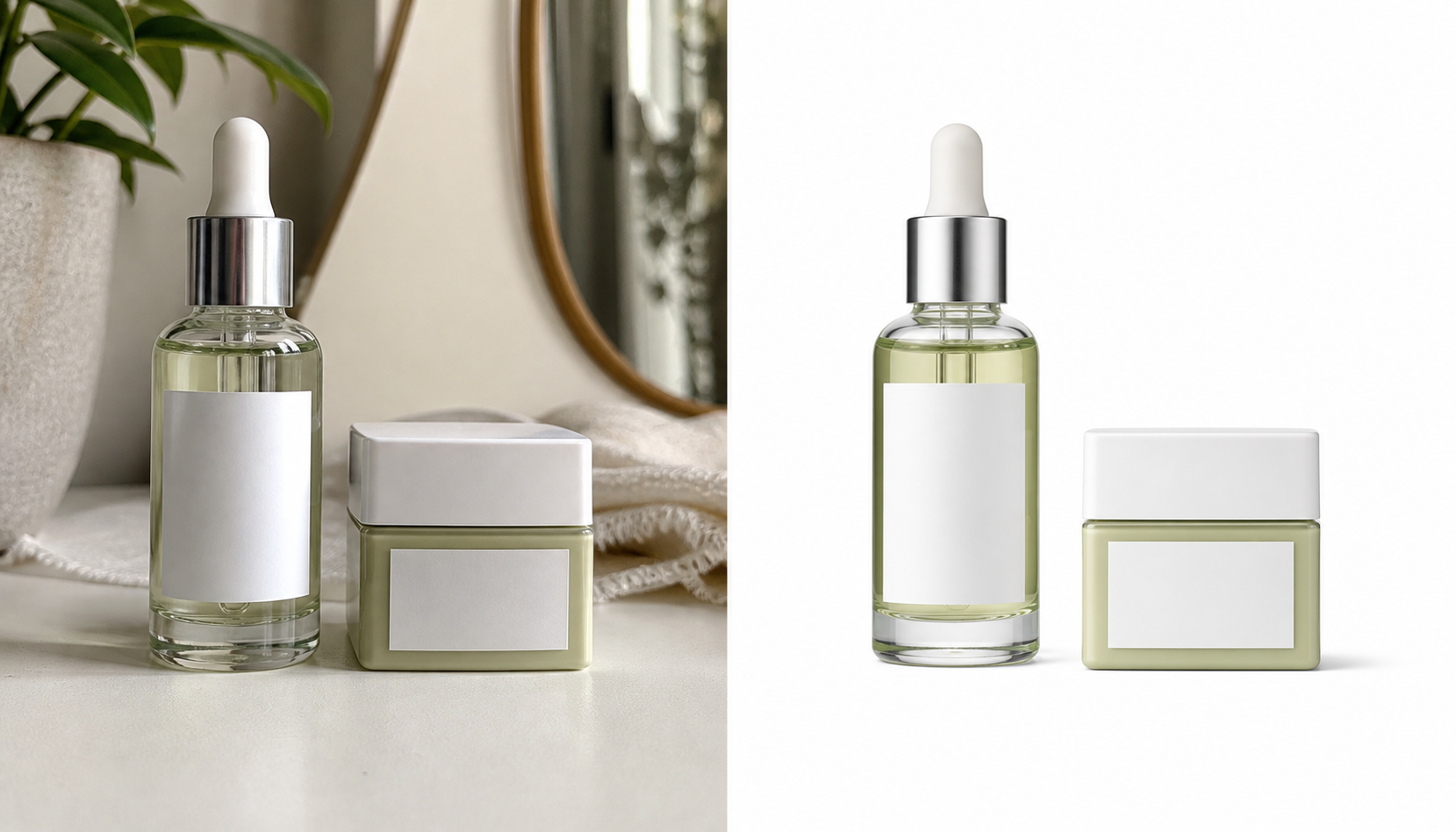
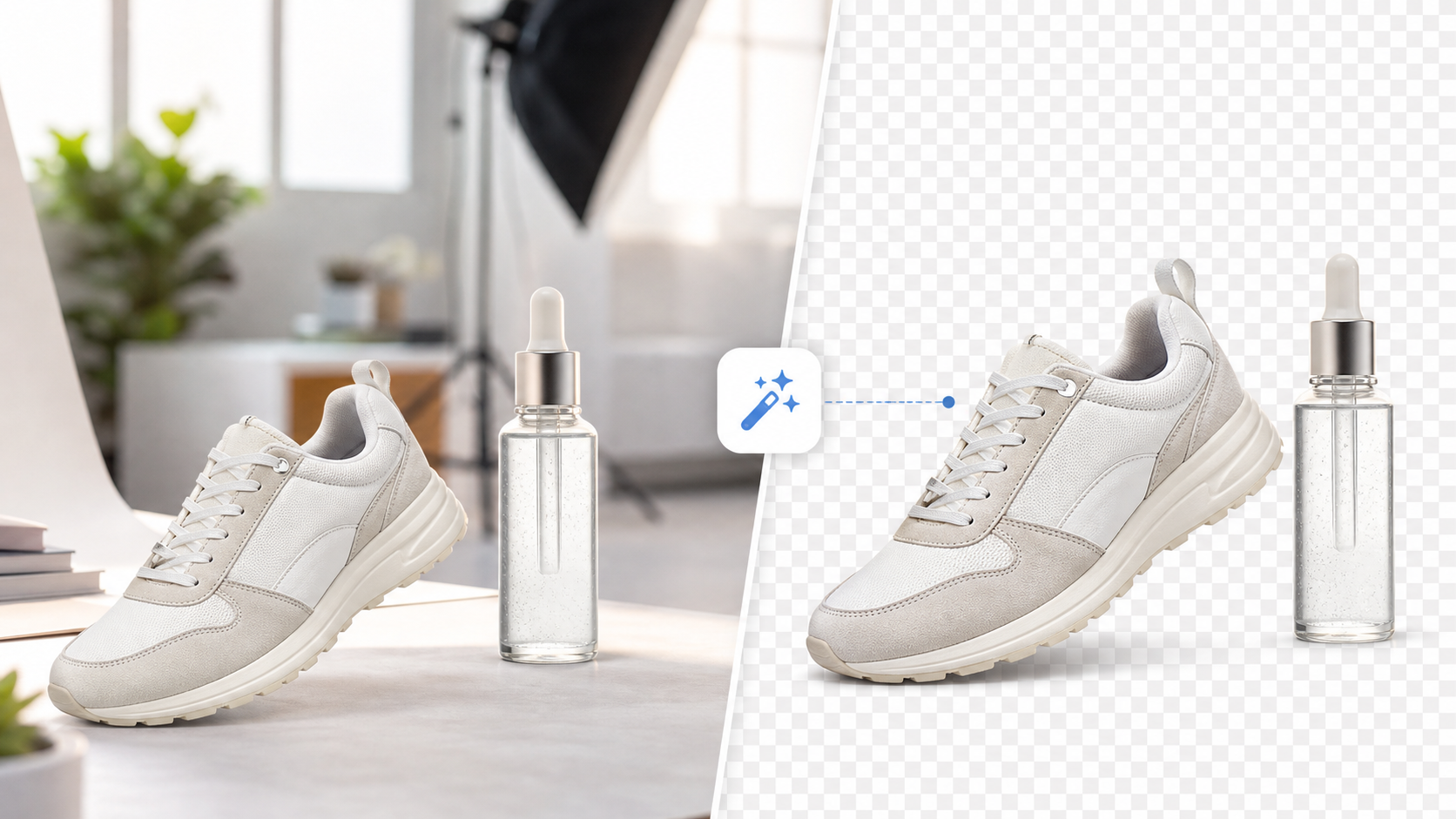
Removing the background from an image is one of the fastest ways to make a photo look more professional. A clean cutout can turn a casual phone picture into a product image, profile picture, sticker, marketplace listing, thumbnail, or design asset.
With SnapEdit's free background remover, you can create transparent PNG cutouts without manually tracing edges in Photoshop. The tool is totally free to use, requires no credits, and supports batch background removal for up to 5 images at once.
Key features
- Totally free background removal: no credits required for this tool.
- Batch processing: remove backgrounds from up to 5 images at once.
- Transparent PNG output: download clean cutouts for products, profiles, posts, and design assets.
- Fast online workflow: upload, process, preview, and download in your browser.
Why background removal matters
A distracting background makes viewers work harder. When the subject is isolated, the image becomes easier to use everywhere:
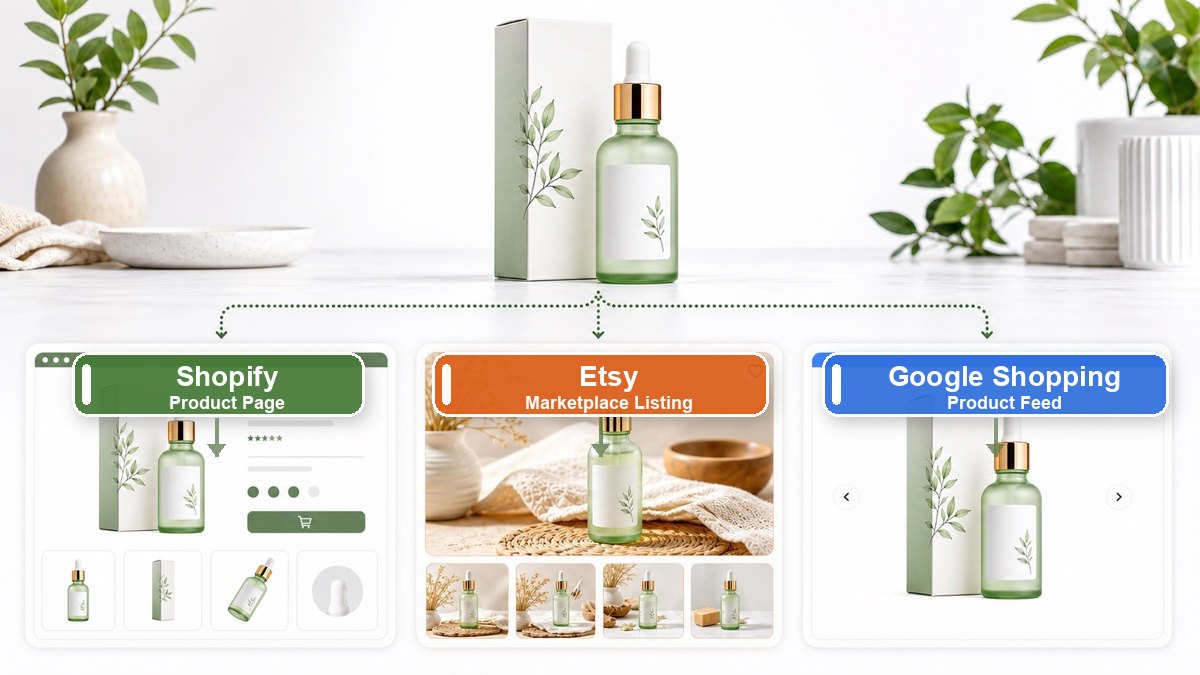
- Product photos for online stores and marketplaces
- Profile pictures for LinkedIn, resumes, avatars, and creator pages
- Social media posts, thumbnails, and ad creatives
- Stickers, collages, presentations, and website graphics
- Batch cleanup for multiple product or catalog images
For ecommerce especially, clean backgrounds can make a product feel more trustworthy. The item becomes the focus, edges look sharper, and the image is easier to place on white, colored, or branded layouts.
How to remove a background online
The workflow is simple:
- Open the Remove Background tool.
- Upload your image, or select up to 5 images if you want to remove backgrounds in batch.
- Start background removal. This tool is free, so it does not use credits.
- Preview the result.
- Download the transparent PNG.
Transparent PNG output is important because it lets you place the subject on any new background later. You can use the same cutout on a white ecommerce page, a colorful social post, or a presentation slide without removing the background again.
Best photos for clean cutouts
AI background removal works best when the subject is clear. Before uploading, choose images with:
- Good lighting
- A subject that is not heavily blurred
- Clear separation between the subject and background
- Minimal overlap with similar colors around the edges
- Enough resolution for the edge details to be visible
Hair, fur, glass, shadows, and transparent objects are always harder than solid products. If the first result is not perfect, try another photo with stronger contrast and better lighting.
Product photos: what to do after removing the background
After you remove the background, you can create several useful versions from the same cutout:
- A pure white background for product listings
- A soft neutral background for your store
- A colorful background for ads or social posts
- A transparent PNG for designers and templates
- A square crop for marketplace thumbnails
This is why background removal is often the first step in a larger image workflow. Once the subject is clean, every next edit becomes easier.
Common mistakes to avoid
Do not upload very small screenshots if you need a polished product image. The background may disappear, but the final cutout will still look low resolution.
Do not crop too tightly before removing the background. Give the AI enough space around the subject so it can understand the full outline.
Do not use a busy background when you can take a cleaner photo. AI can handle difficult images, but a simple source photo usually gives a cleaner result.
When to use batch background removal
Batch background removal is useful when you have many similar images, such as product listings, catalog updates, profile variations, or social content.
Instead of editing every image one by one, upload multiple images and process them together. SnapEdit currently lets you remove backgrounds from up to 5 images at once, which is especially helpful when you are preparing a small product batch, multiple marketplace photos, or several social media assets.
Because the background remover is totally free and does not require credits, batch processing is a practical way to clean up more images without worrying about usage cost.
Try it
If you need a quick transparent PNG, start with the free AI background remover. It is totally free, uses no credits, and can process up to 5 images at once. Upload your images, remove the backgrounds, and use the results in your store, profile, post, or design.