Transparent PNG vs White Background: What’s Best for Product Photos?
2026-06-01 • snapedit team • 3 min read
If you sell products online, one of the most common image questions is simple: should your product photos have a white background, or should you export them as transparent PNG files?
The short answer is this: use a white background for clean marketplace-style main images, and keep a transparent PNG as your reusable master file for everything else.
When to use a white background
A white background is usually the better choice for:
- main marketplace images
- product grids and catalog pages
- comparison-friendly ecommerce layouts
- stores that want a clean, consistent visual style
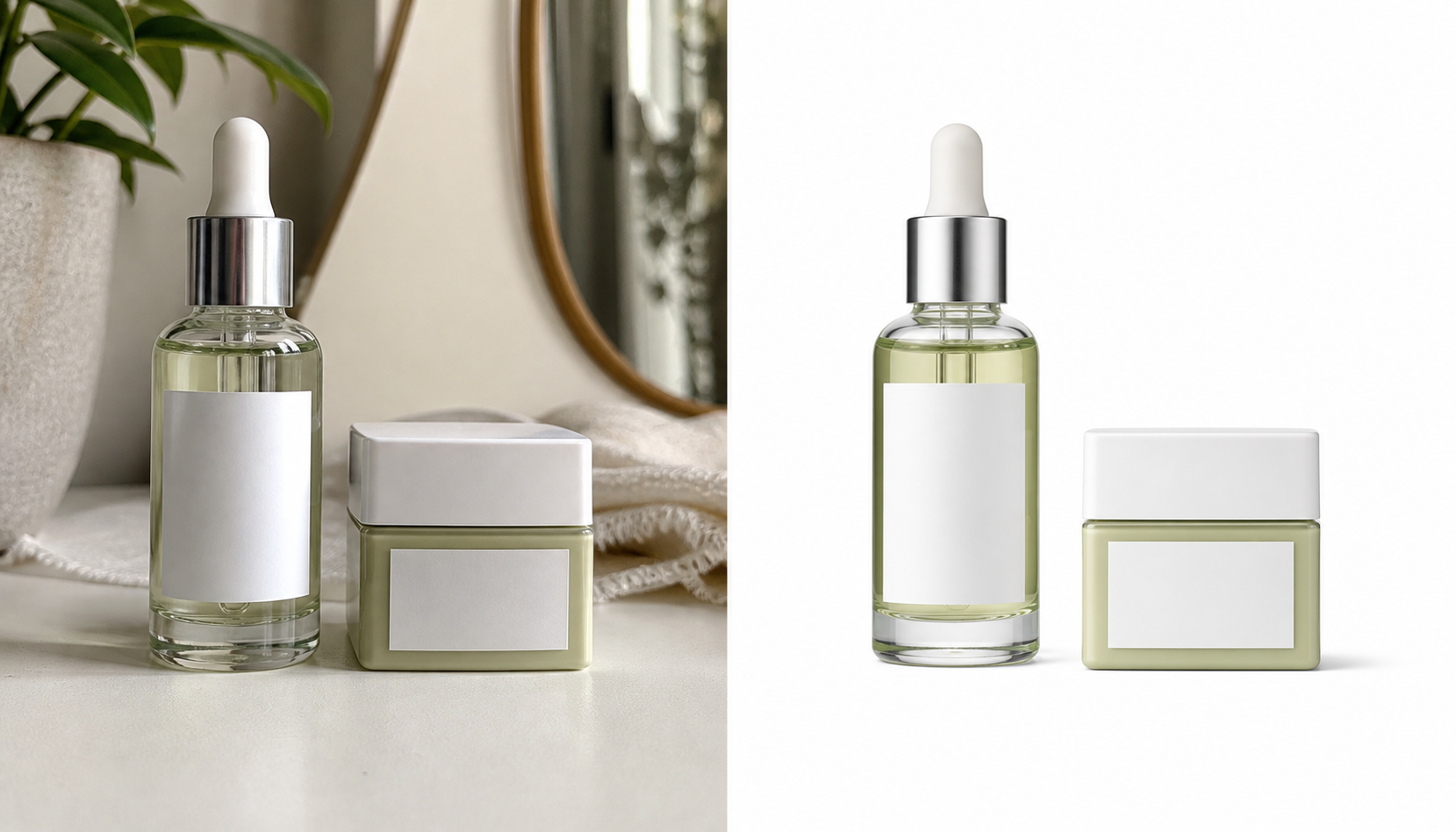
White backgrounds reduce distraction and make the product easier to scan quickly. If your goal is a polished listing image, white is still the safest default.
When to use a transparent PNG
A transparent PNG is better when you want flexibility after the cutout is done.
Use it for:
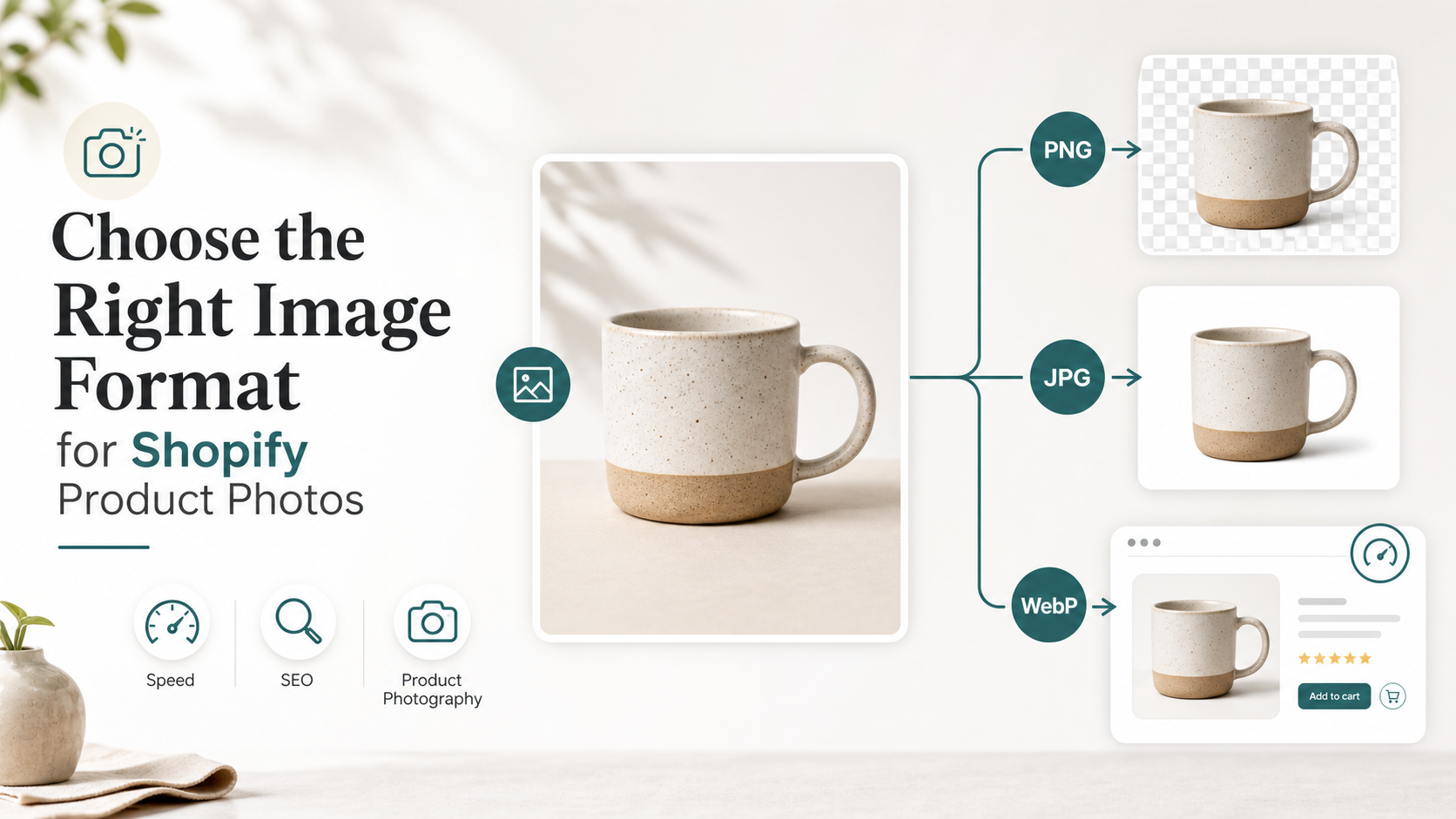
- Shopify hero banners
- promotional graphics
- product bundles and badges
- blog graphics and social posts
- design handoff to freelancers or teammates
PNG matters because it preserves true transparency. That means you can place the same product on white, beige, branded, or seasonal backgrounds later without cutting it out again.
A practical Shopify workflow
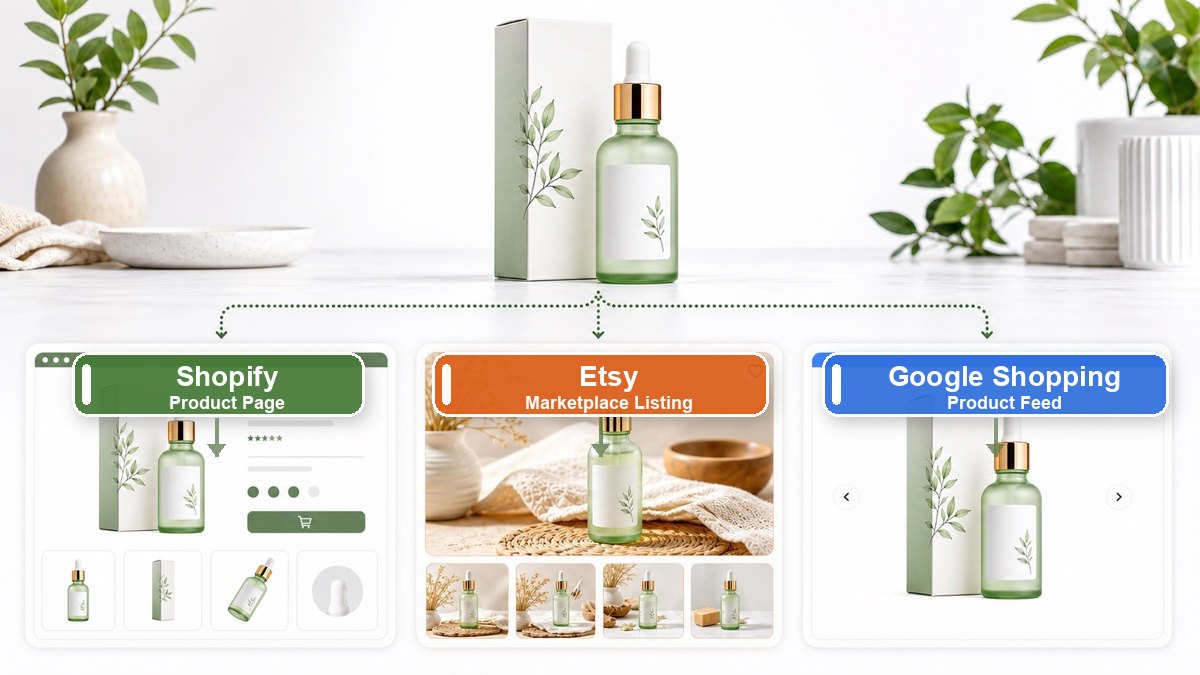
For Shopify sellers, one product photo often needs to do several jobs.
The same item might need:
- a white-background image for the product page
- a styled version for the homepage
- a cutout for a sale banner
- a sharper image for a blog post or gift guide
If you only keep a white-background JPG, every new campaign becomes another editing task. If you keep a transparent PNG master, you can reuse the same product much faster across your store.
A simple process with SnapEdit
This is the easiest workflow for most small ecommerce teams:
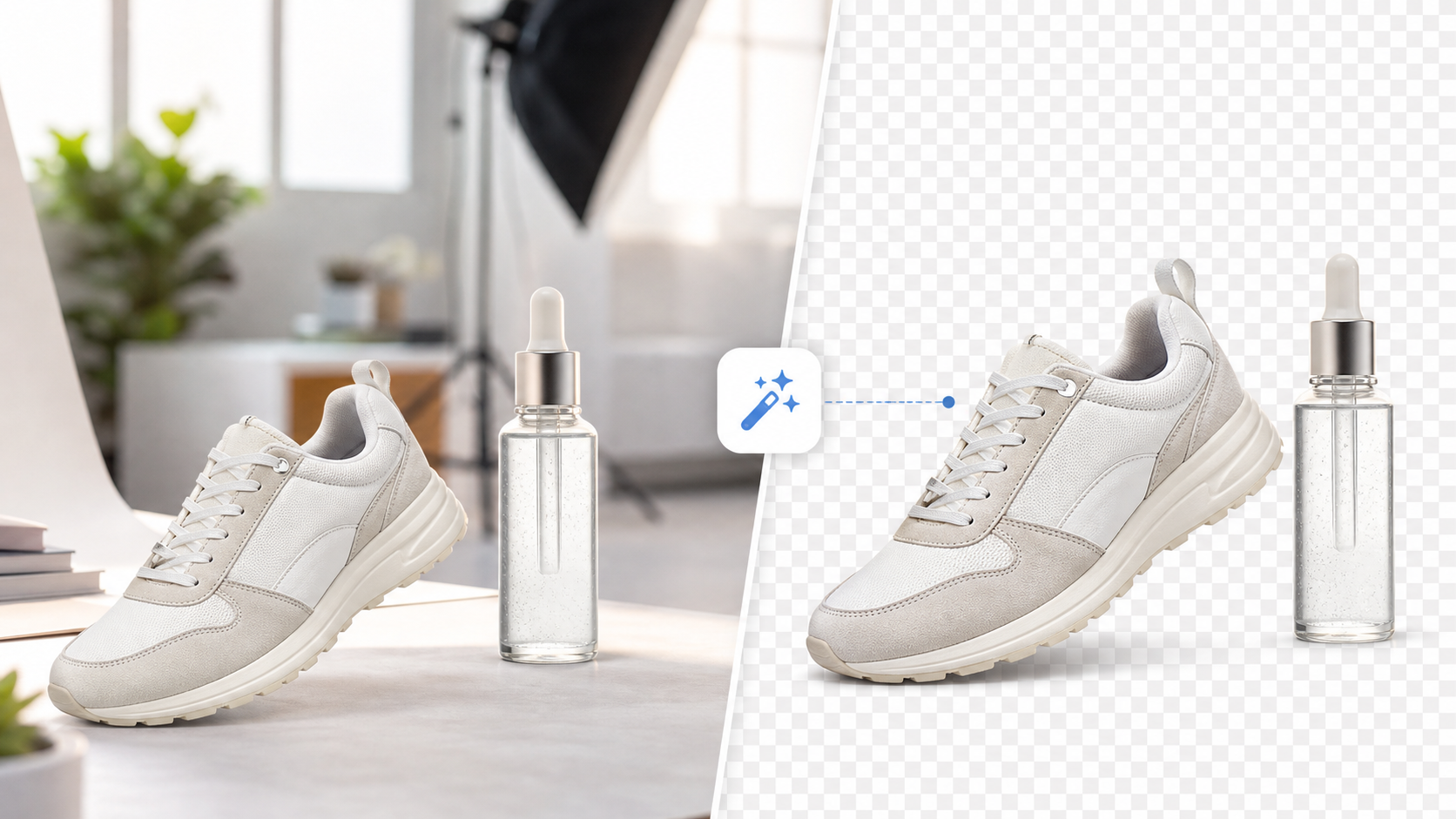
- Upload the original product photo to SnapEdit’s background remover.
- Remove the background and save the result as a transparent PNG.
- Create a white-background export for your main listing image.
- Reuse the PNG for banners, promotional sections, and campaign graphics.
- Use the AI image upscaler if the final image needs to be sharper or larger.
This order matters. If you keep the transparent PNG as the master, making the white-background version is easy. The reverse is not.
SnapEdit’s background remover is also useful for small product batches because it is free to use, does not require credits, and supports up to 5 images at once.
Common mistakes to avoid
- Do not save only a flattened white-background JPG. Keep the transparent PNG as the reusable master.
- Do not assume every PNG is transparent. Some PNG files still have a white background baked in.
- Do not upscale a very weak source repeatedly. Start with the best original photo you have.
- Do not use the exact same image treatment for every channel. Your product page, homepage, and ad creative may need different versions.
Final takeaway
If you are choosing between transparent PNG and white background product photos, the best answer is usually to keep both.
Use a transparent PNG as your master asset, then export a white-background version whenever your store or marketplace needs it.
That workflow gives you more flexibility, faster reuse, and fewer repeated edits. If you want to create both versions quickly, start with SnapEdit’s free background remover, then use the AI image upscaler when you need a cleaner final export.