AI Image Upscaler: How to Make Low-Resolution Images Clearer Online
2026-05-31 • snapedit team • 3 min read
A low-resolution image can make a good design feel unfinished. It may look acceptable on a phone, but once you place it on a website, product page, poster, or presentation, the blur becomes obvious.
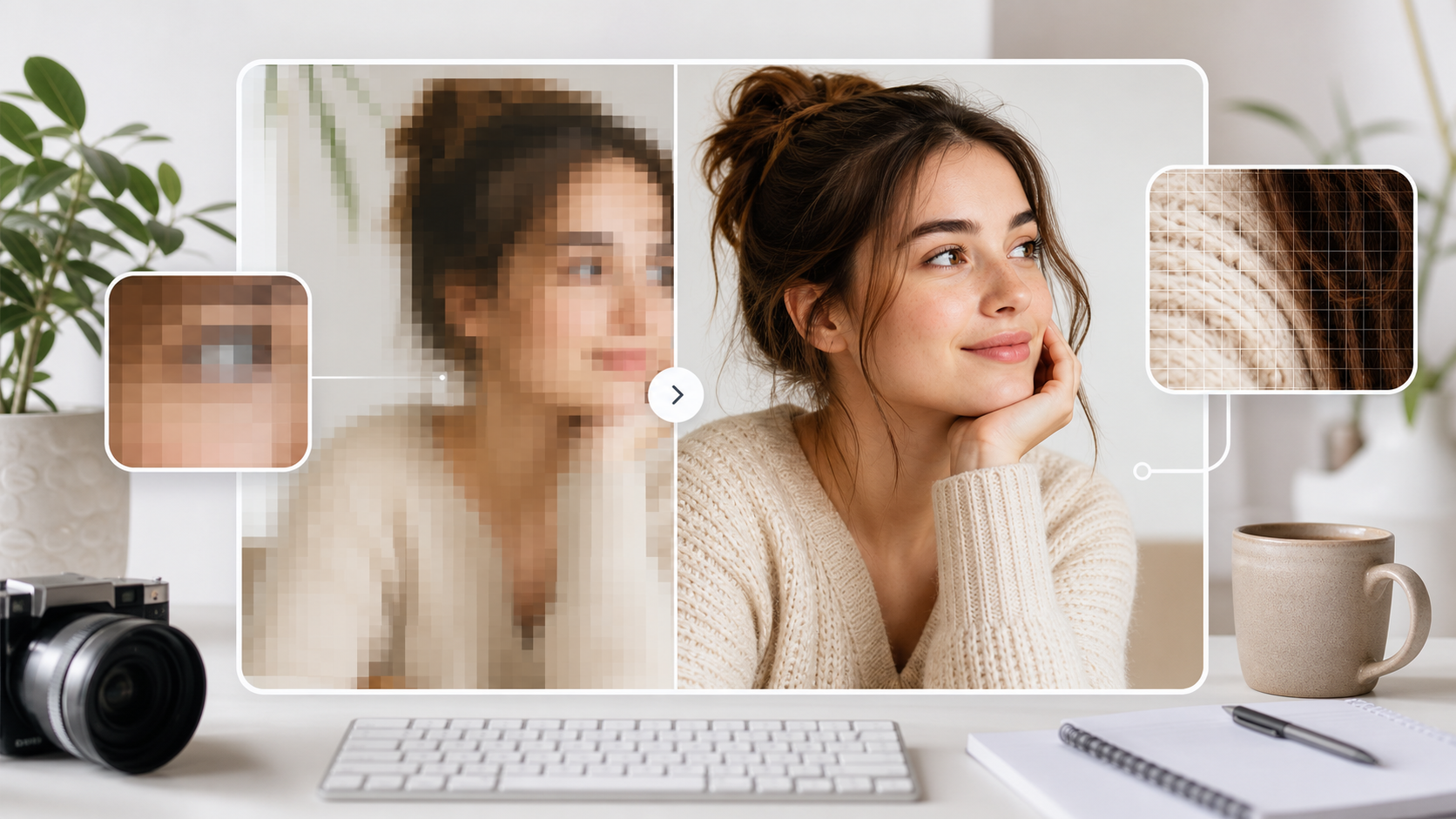
An AI image upscaler helps by increasing image resolution and restoring sharper visual detail. Instead of simply stretching pixels, AI upscaling analyzes the image and rebuilds cleaner edges, textures, and fine details.
What is AI image upscaling?
Traditional resizing makes an image bigger, but it does not truly add detail. If the original image is small, normal resizing often creates soft edges and visible pixelation.
AI upscaling is different. It uses a model trained to recognize visual patterns, then enhances the image while increasing its size. The result can look sharper and more useful for real-world publishing.
Use AI upscaling when you want to:
- Make old or small photos clearer
- Improve product photos before publishing
- Prepare images for website banners or blog posts
- Clean up social media assets
- Improve AI-generated images before downloading or sharing
- Make thumbnails and marketing visuals look more polished
How to upscale an image online
The basic workflow is quick:
- Open the SnapEdit Image Upscaler.
- Upload the image you want to improve.
- Start the AI upscaling process.
- Preview the enhanced result.
- Download the upscaled image.
For best results, start with the highest-quality version you have. AI can improve many images, but it cannot fully recover information that was completely lost in an extremely compressed or tiny file.
Best images for AI upscaling
AI upscaling is especially helpful for images that are slightly too small, mildly blurry, or compressed from social platforms.
It works well for:
- Product images
- Portraits and profile photos
- Lifestyle photos
- Website graphics
- Blog and article images
- AI-generated artwork
- Social media exports
It may struggle with images that are very blurry, heavily pixelated, over-compressed, or full of unreadable text. If the original file is extremely damaged, the result may look cleaner but not perfectly natural.
Upscaling product photos
For online stores, image quality affects trust. A blurry product image can make the product feel cheaper than it really is.
Before uploading product photos to a store, try this workflow:
- Choose the cleanest original product photo.
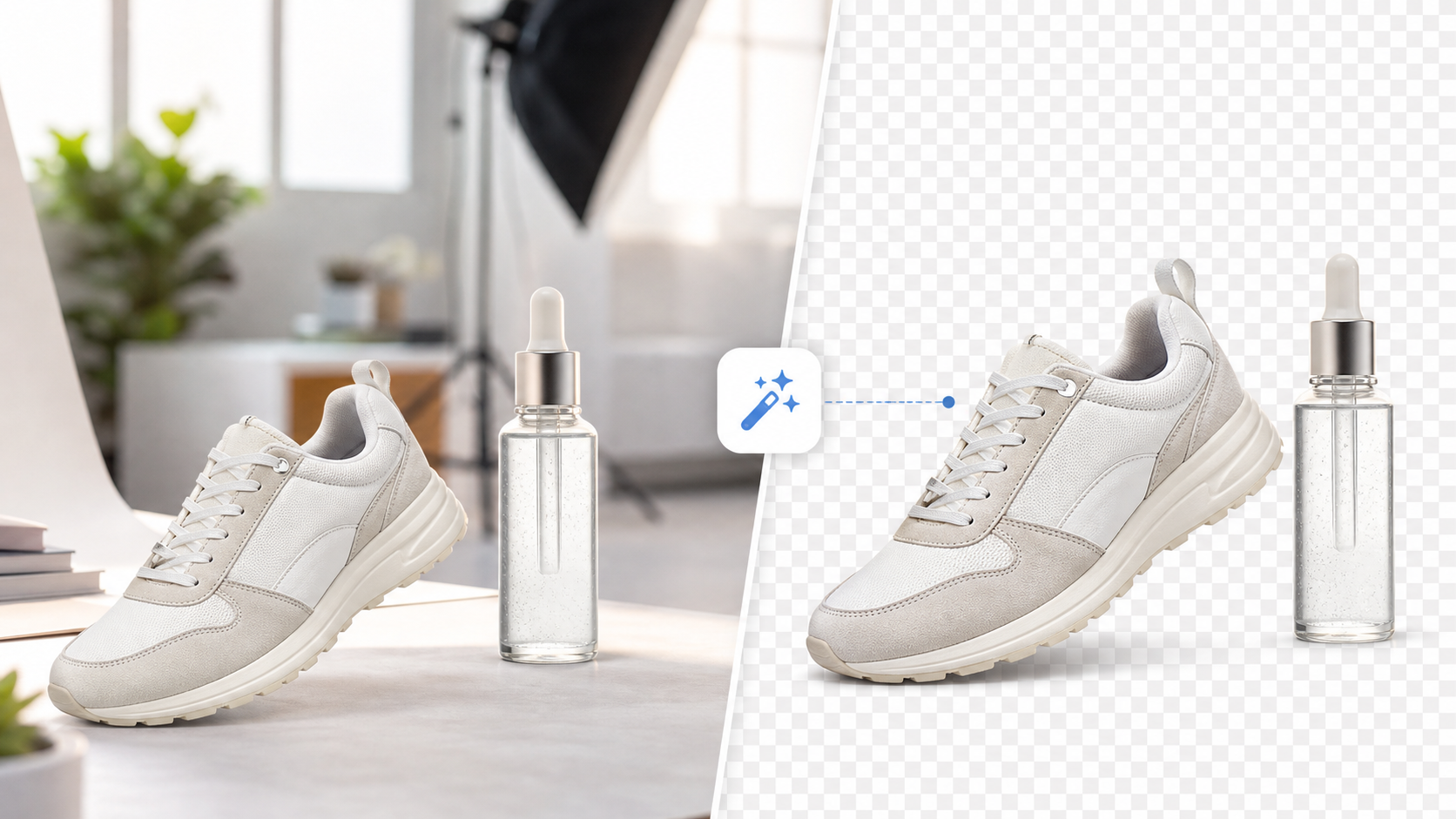
- Remove the background if needed with the background remover.
- Upscale the image for sharper detail.
- Crop it consistently for product cards or marketplace listings.
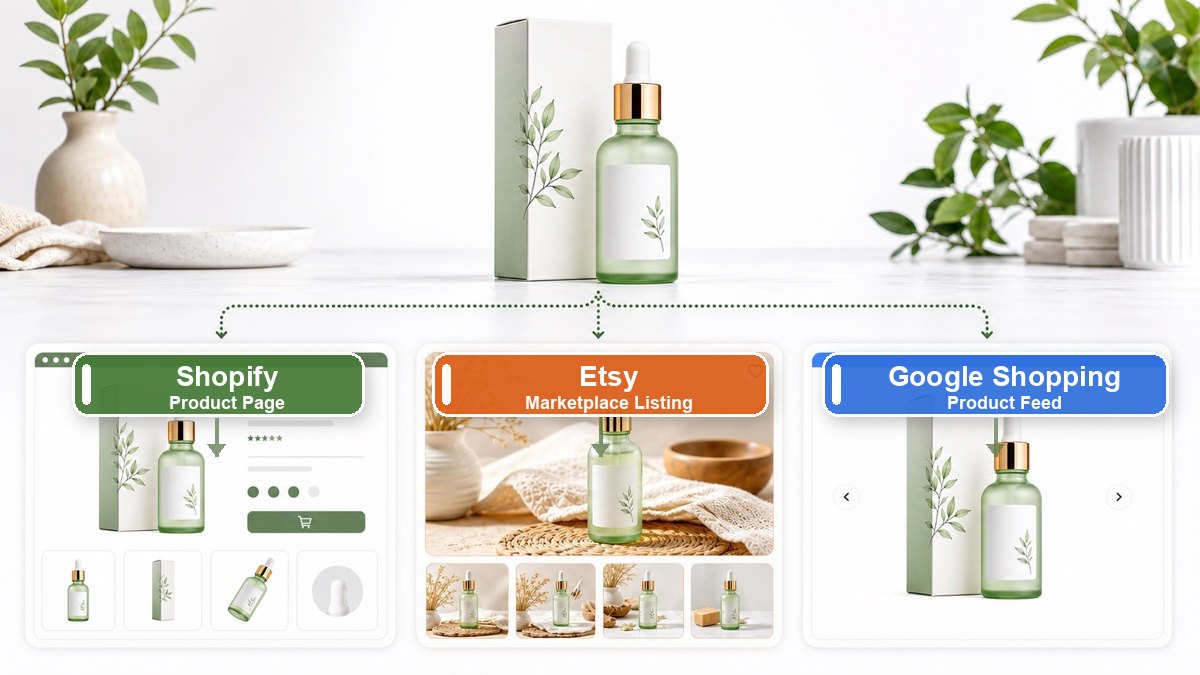
- Export a version for your website and another for social media.
This gives you a reusable asset that looks better across multiple channels.
Upscaling AI-generated images
AI-generated images are often beautiful, but they may not always be large enough for every use case. If you create an image for a blog cover, ad, poster, or product mockup, upscaling can help make the final export feel sharper.
Use the upscaler after you are happy with the composition. Upscaling is usually the final polish step, not the first creative step.
Tips for better results
Use the original file instead of a screenshot when possible. Screenshots are often compressed and may include scaling artifacts.
Avoid uploading images with important tiny text. AI may sharpen the image, but small text can become distorted.
Do not upscale the same image repeatedly. One good upscale usually looks cleaner than running the same file through multiple enhancement passes.
Try it
If your image looks too small, soft, or compressed, try the AI image upscaler. Upload your image, enhance it online, and download a clearer version for your website, product page, or social post.